SOUND QUALITY / Audacity
A waveform can reveal pauses, peaks and broad changes in a recording. It cannot tell you whether a sentence makes sense, a speaker sounds natural or a quiet detail is worth keeping.
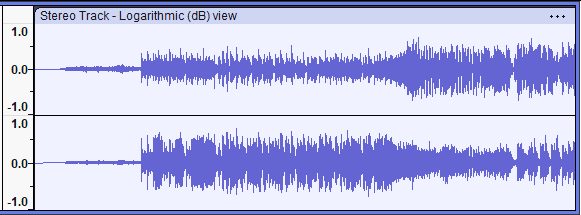
Read the shape at the right scale
A broad view helps locate sections of speech and silence. A close view helps position a selection near a specific event. Audacity's waveform documentation explains the display of amplitude over time. That view is valuable, but a tall shape is not automatically a good or bad sound. Context determines whether a peak is a clap, a consonant or an unwanted interruption.
Compare channels carefully
A stereo file can show different material in its two channels. A low or apparently empty channel deserves investigation before you amplify or discard anything. Listen and check the source arrangement. A spoken recording made with one microphone and a stereo music recording are different cases; they should not receive the same correction merely because the display looks uneven.
Do not cut by appearance alone
A small waveform section can contain the end of a word or a quiet breath that makes a join sound natural. Select and play the proposed edit before deleting it. After making the change, listen across the boundary at normal speed. The goal is clear communication, not a perfectly uniform picture of sound.
Use the display as a question generator
An unexpected spike, flat region or channel imbalance should prompt a focused check. It does not by itself identify the cause or the correct effect. Keep the source file and make changes in small reversible steps. An exported listening check remains necessary because the audience hears the result without seeing the explanatory waveform.
A small check to try
- Zoom for the specific decision.
- Listen before altering unusual peaks or channels.
- Review the final export without the waveform.